

A Whole New Way to Look at a Deck
A deck list tells you what's in a deck. It doesn't always tell you how the deck works.
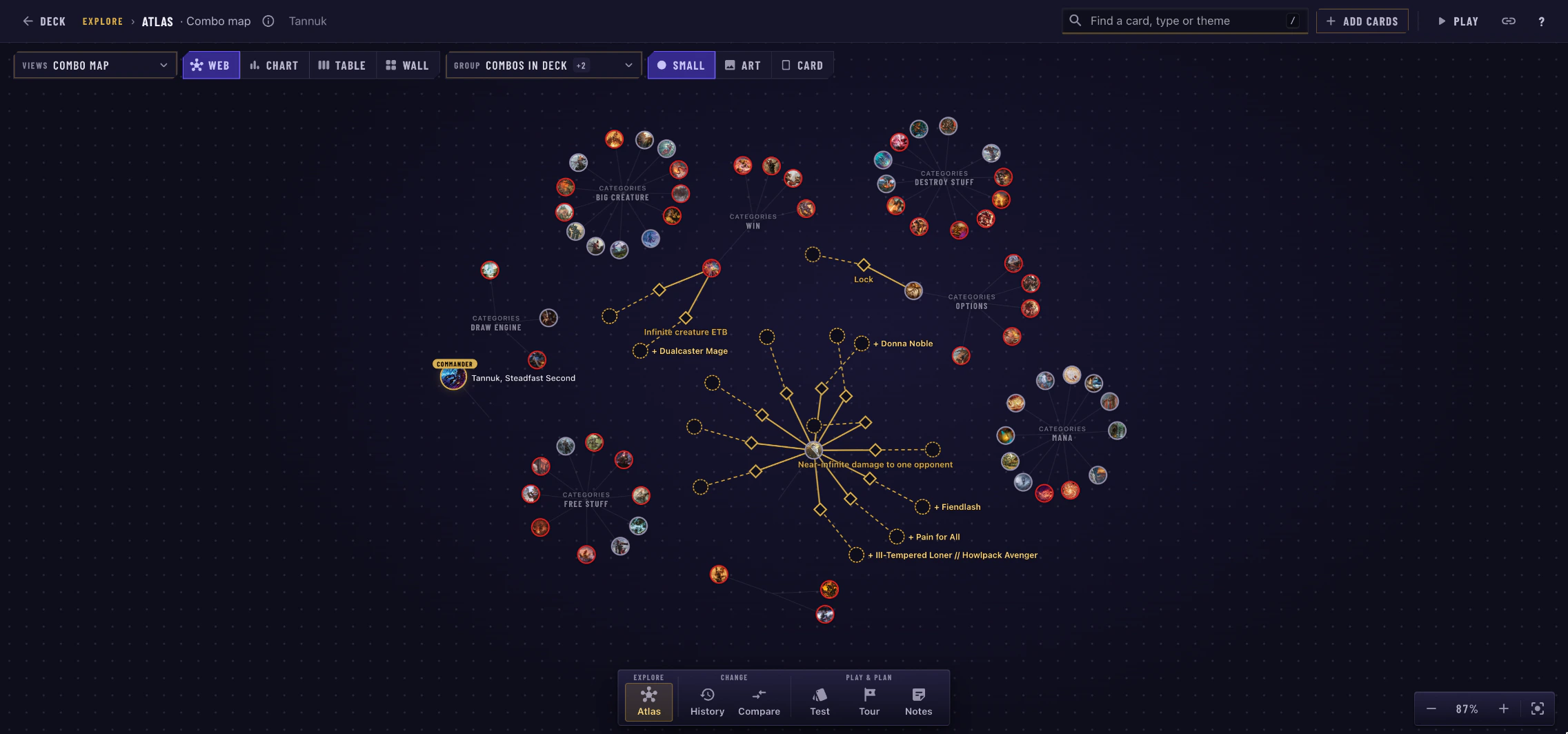
Meet Explore, a full-screen view of any deck on ManyTCG. Every card is laid out on one big table you can pan, zoom and rearrange. Sort the cards by anything they share, chart the curve, map the combos, play back how the list was built, put it next to another deck, or deal yourself a few hands.
Want to see it in action? Explore the Tannuk deck.
Opening Explore
On any deck page, click Explore in the deck's toolbar. The deck opens full screen, ready to go.
Explore has its own link, so you can share exactly what you're looking at. Press Esc to close it and land back on the deck page.
Along the bottom is the dock, where you switch between Explore's six lenses:
- Atlas: group, chart and wall the cards
- History: how the deck was built
- Compare: against another deck
- Test: deal a hand and play it out
- Tour: the primer, stop by stop
- Notes: every note, by its card
Atlas: Group Cards by Anything
Atlas is where you'll spend most of your time. Pick what to group by, how to draw it, and how big each card should be.
You can group by:
- Categories and Card type
- Color and Mana value
- Keywords and Text themes (removal, ramp, draw and so on)
- Set, Set year and Artist
- Combos in deck and Potential combos
- In collection and Not in collection
Then choose a view:
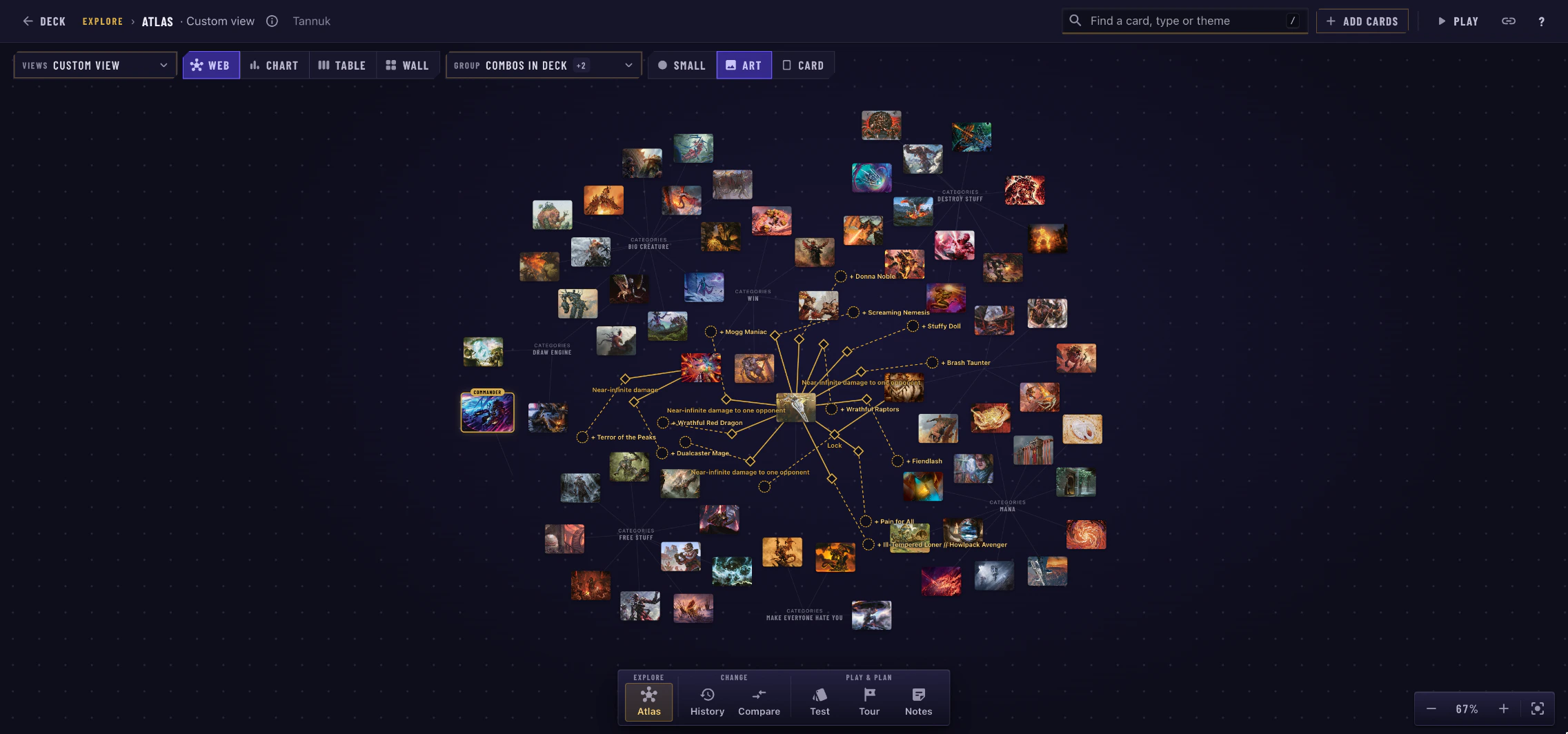
- Web draws a hub for every group and links each card to the groups it belongs to. Turn on several groupings and you'll see how they overlap.
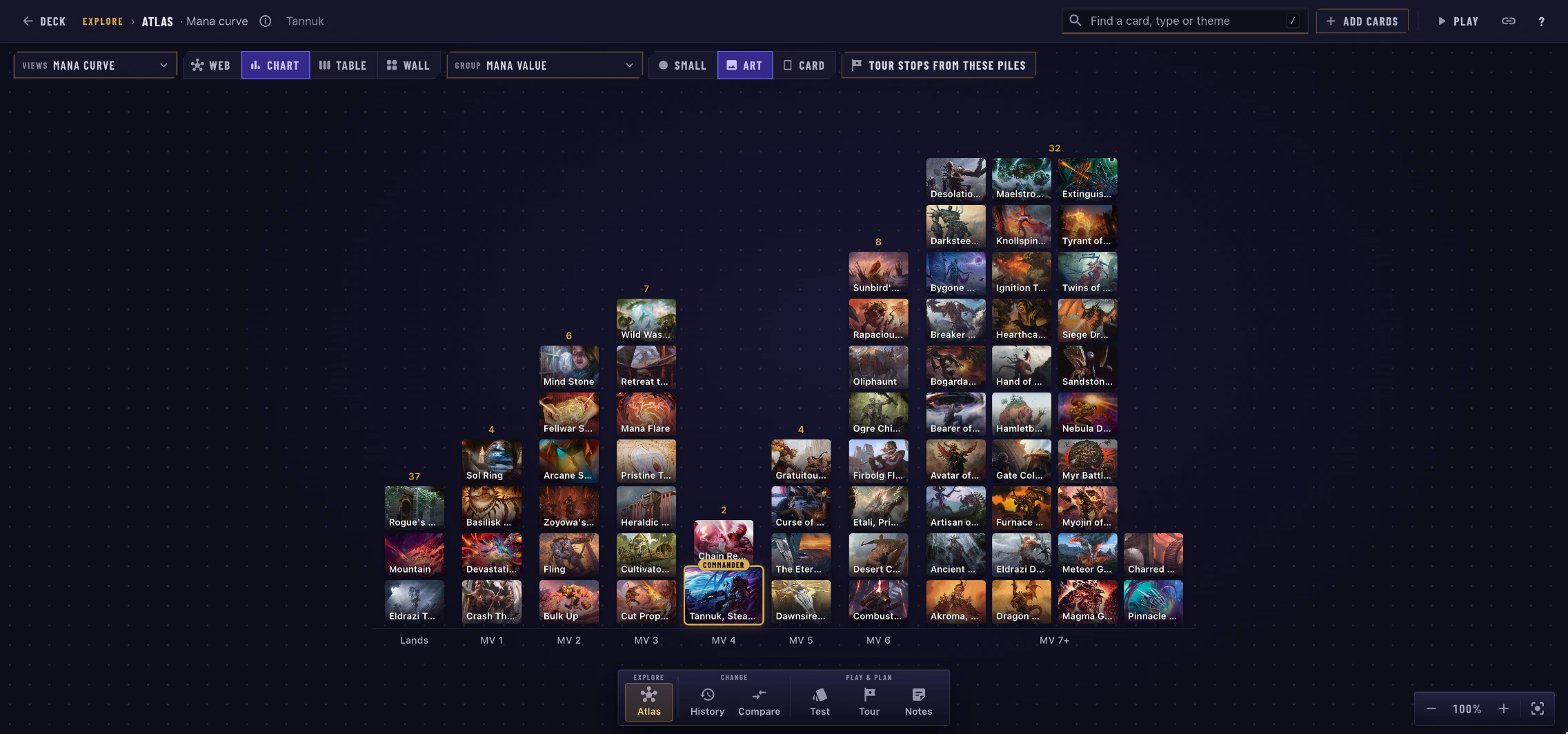
- Chart stacks the cards into columns, like a mana curve.
- Table sorts them into piles, like you would on a kitchen table.
- Wall packs them into blocks. Turn on price and each card's size shows what it costs.
Each card can be a Small dot, its Card art, or the Full card.
Popular Views
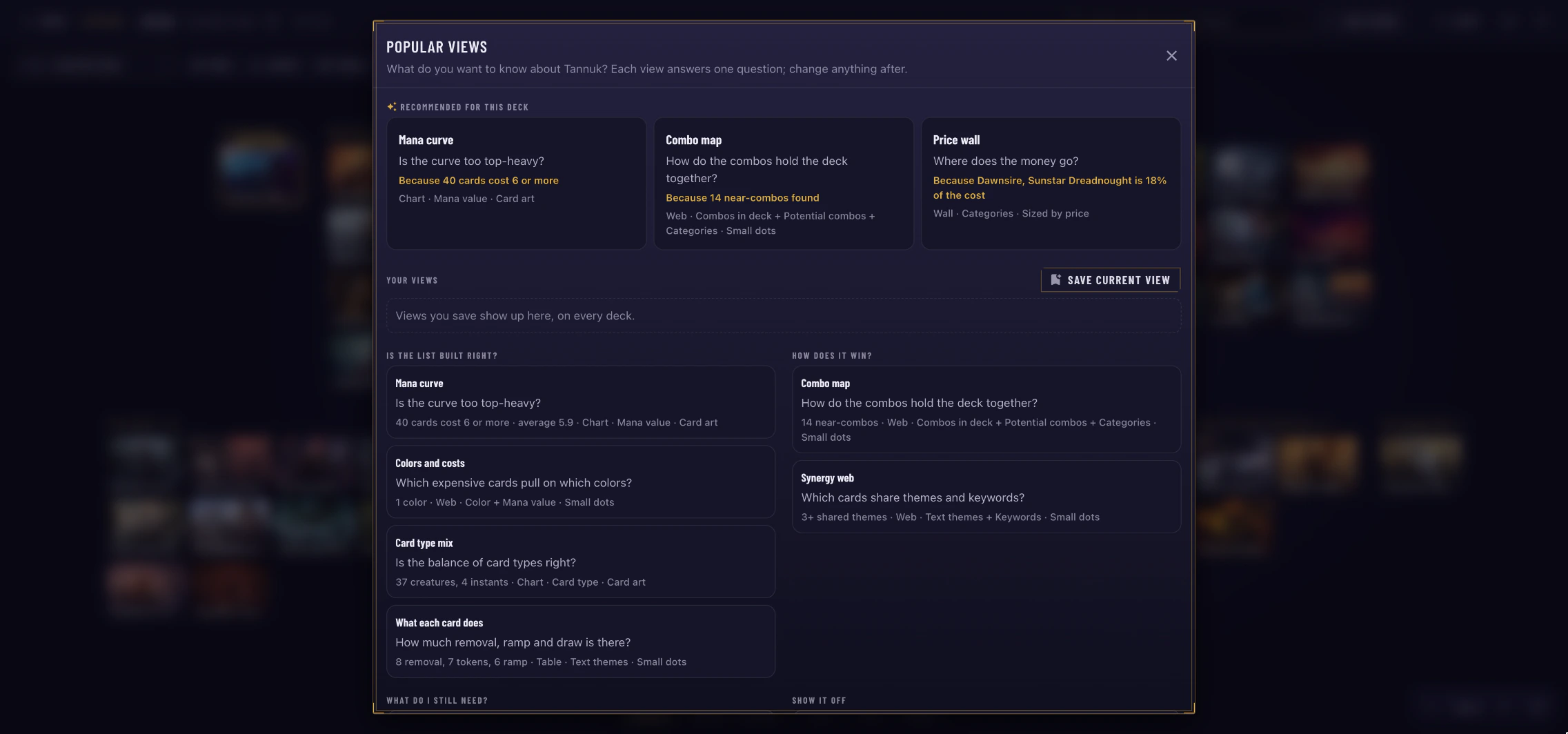
Not sure where to start? Open Views for ready-made setups, each one answering a question about the deck:
- Is the list built right? Mana curve, Colors and costs, Card type mix, What each card does
- How does it win? Combo map, Synergy web
- What do I still need? One card away, Shopping list, Price wall
- Show it off Art by artist, Category piles, Through the years
Every view comes with a quick fact about this deck, such as how many cards cost 6 or more, or which card is eating most of the budget. The top of the list shows the three views Recommended for this deck.
Built something you like? Click Save current view, give it a name, and it's waiting under Your views for every deck you open in this browser.
Find Any Card
Press / (or click the search box) and start typing. Explore lights up the cards that match by name, type, category, theme, keyword or artist, and dims the rest. Press Enter to fly to the next match. Find works in every lens.
History: Watch the Deck Come Together
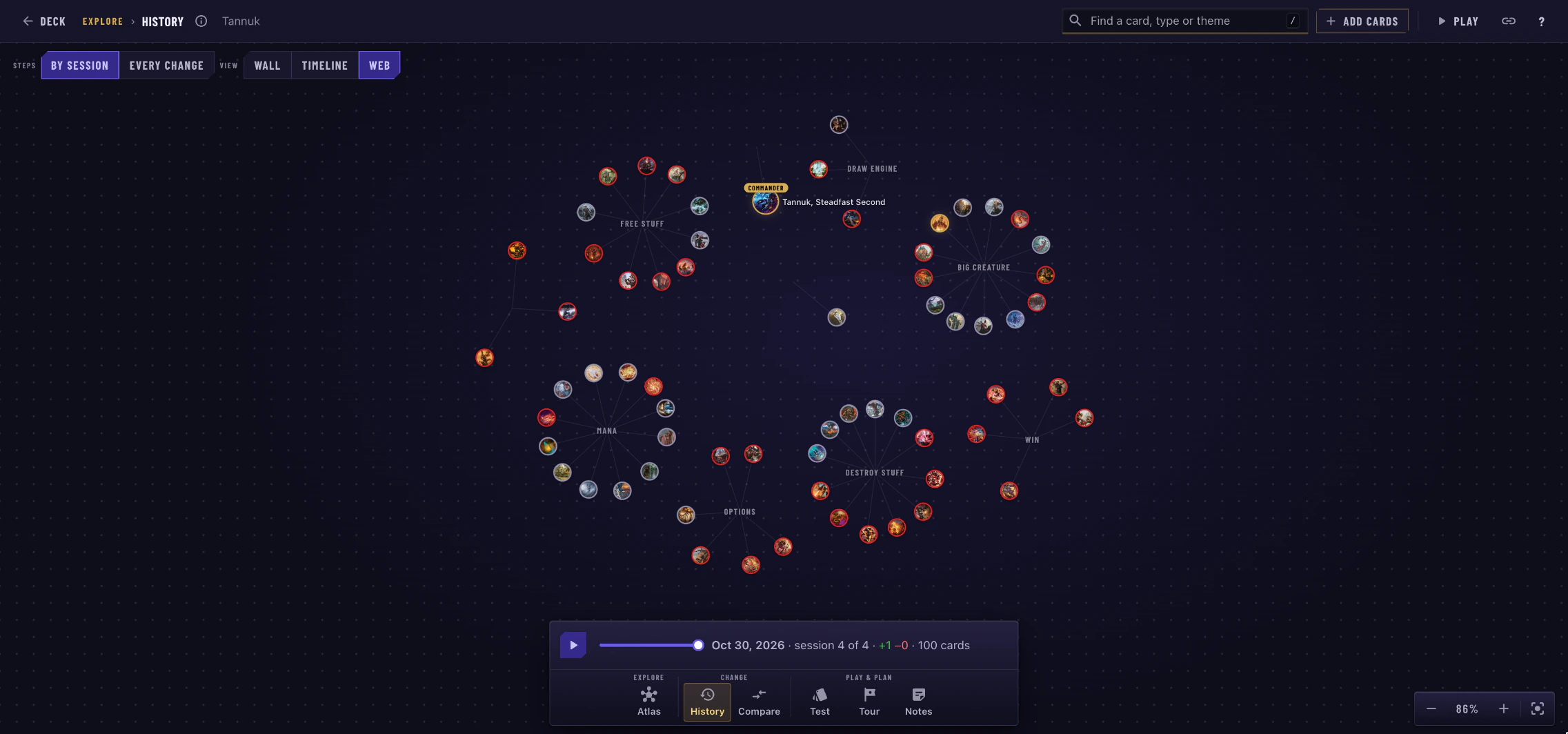
The History lens plays back how the deck was built. Step through it By session (each sitting of edits) or Every change, and watch cards arrive and leave as a Wall, a Timeline or a Web.
Press play and sit back, or drag the slider to jump to any point.
Compare: Two Decks, One Table
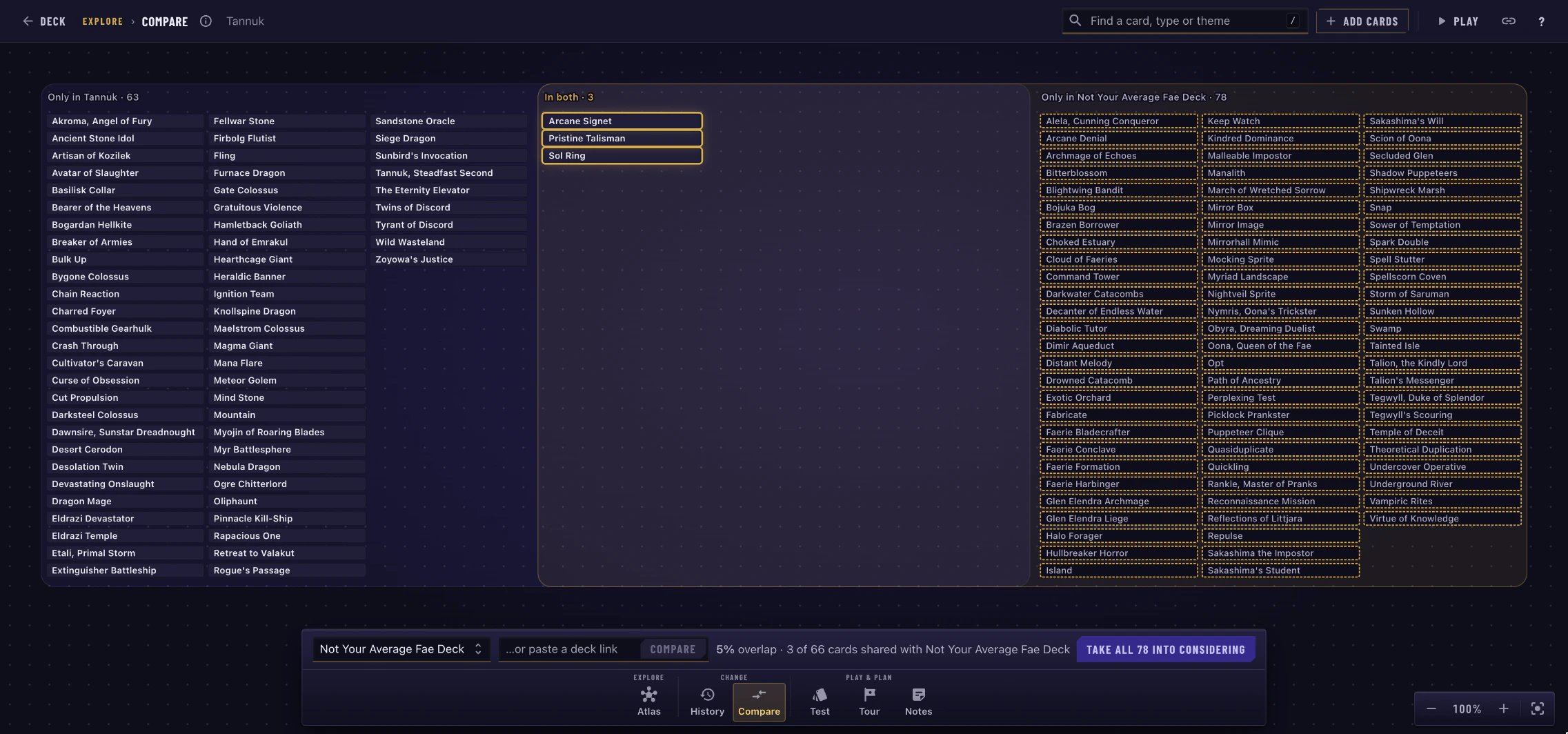
Pick one of your own decks, or paste a link to any deck, and Compare puts it on the table next to this one. Shared cards meet in the middle, so you can see at a glance how much two lists have in common. Cards drawn dashed are only in the other deck.
If it's your deck, you can take all of the other deck's cards straight into Considering with one click.
Test: Deal Some Hands
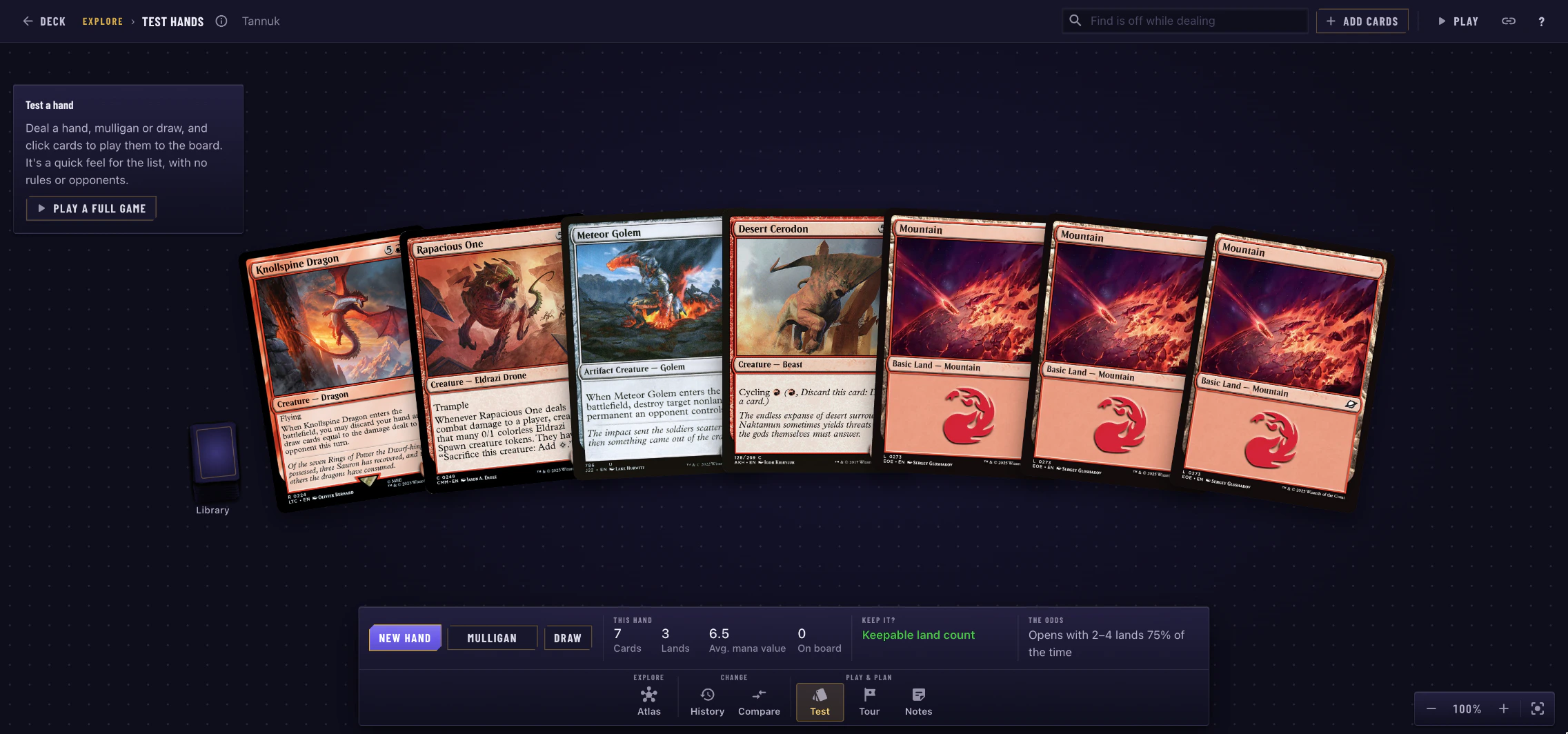
Test deals you a sample hand. Hit New hand, Mulligan or Draw, and play cards onto the board to get a feel for how the deck opens. In Magic decks, mulligans follow the London rule, so you choose which cards go to the bottom.
Below the hand you'll see a quick summary, a Keep it? check, and The odds of how this list tends to open.
Tour: Let the Author Show You Around
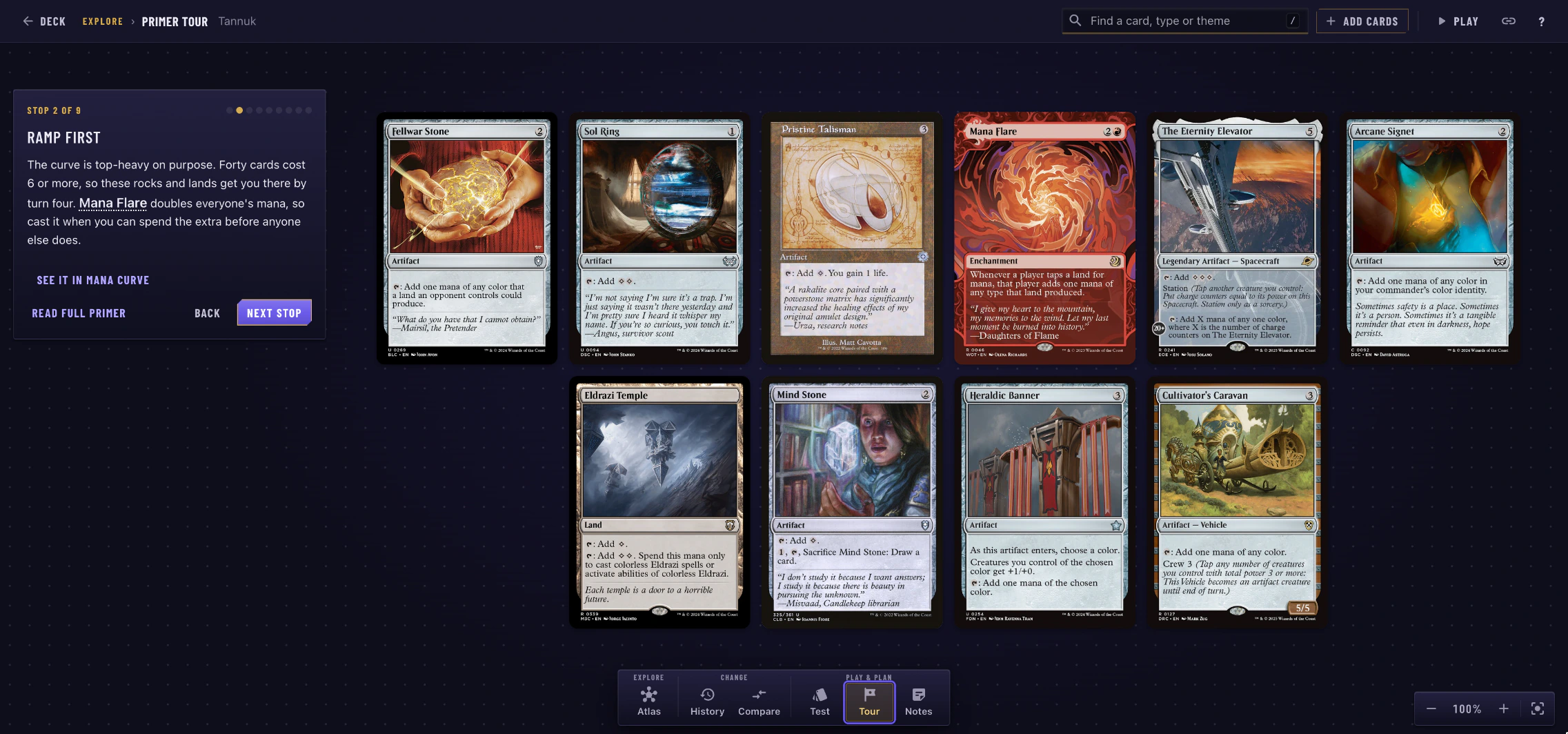
If a deck has a primer, the Tour lens turns it into a guided walk through the deck. Each stop frames the cards it talks about, with the author's words beside them. Use the arrow keys to move between stops. A stop can even switch Explore to the view that makes its point, like the combo map or the mana curve.
Notes: Every Card Note in One Place
The Notes lens lays out every note on the deck beside its card, by group or as a timeline. Notes are private to the deck's editors, so only you and your co-authors see this lens filled in. Select a card and press N to write one.
Check It Against Your Collection
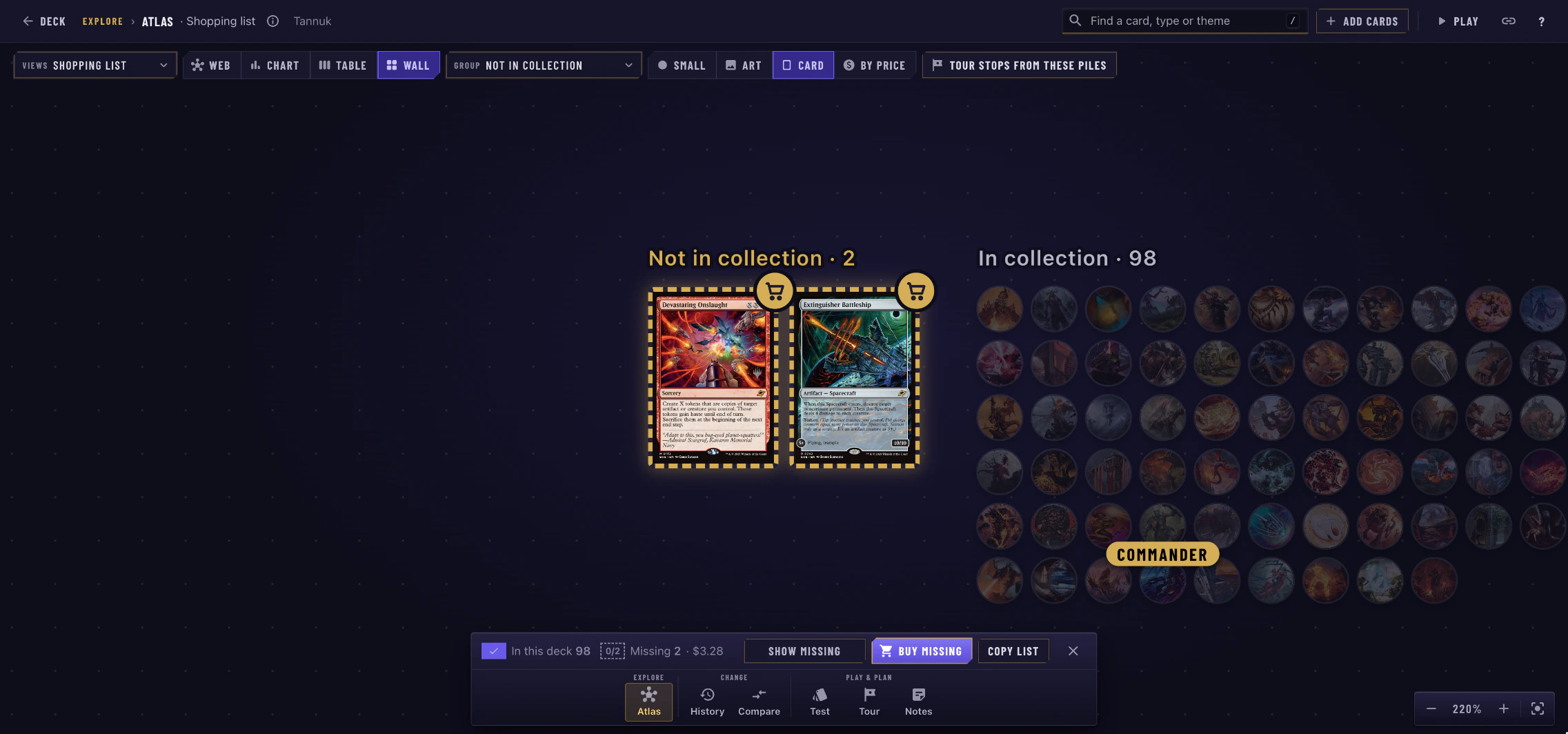
Turn on Collection and Explore marks every card you're missing. A bar at the bottom shows what you own, what's missing and what the missing cards cost, with three handy buttons:
- Show missing lights up only the cards you still need.
- Buy missing opens the shopping options for them.
- Copy list copies them to your clipboard.
Picking an In collection or Not in collection grouping (or the Shopping list view) turns Collection on for you.
Edit Right on the Table
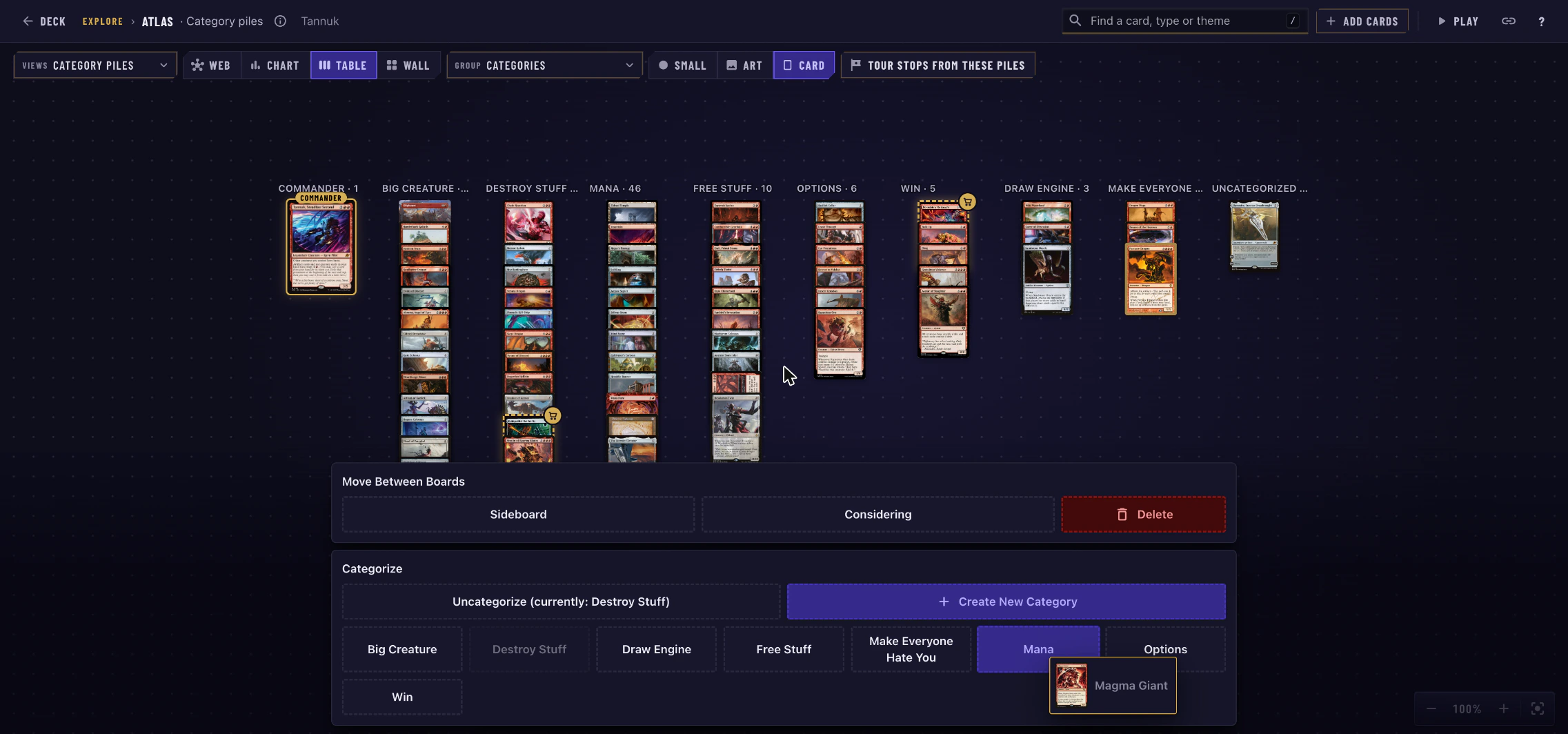
Explore isn't just for looking. If you can edit the deck, you can build it from here too:
- Drag a card onto a board or a category to move it there.
- Shift-drag around several cards (or Shift-click them) to select a group, then move them, remove them, or make a tour stop from them.
- Press A or click Add cards to search for cards. Each one you add lights up on the table.
- In Chart, Table or Wall, turn the piles you're looking at into tour stops in one go.
- Made a mistake? Undo works here too.
Keyboard Shortcuts
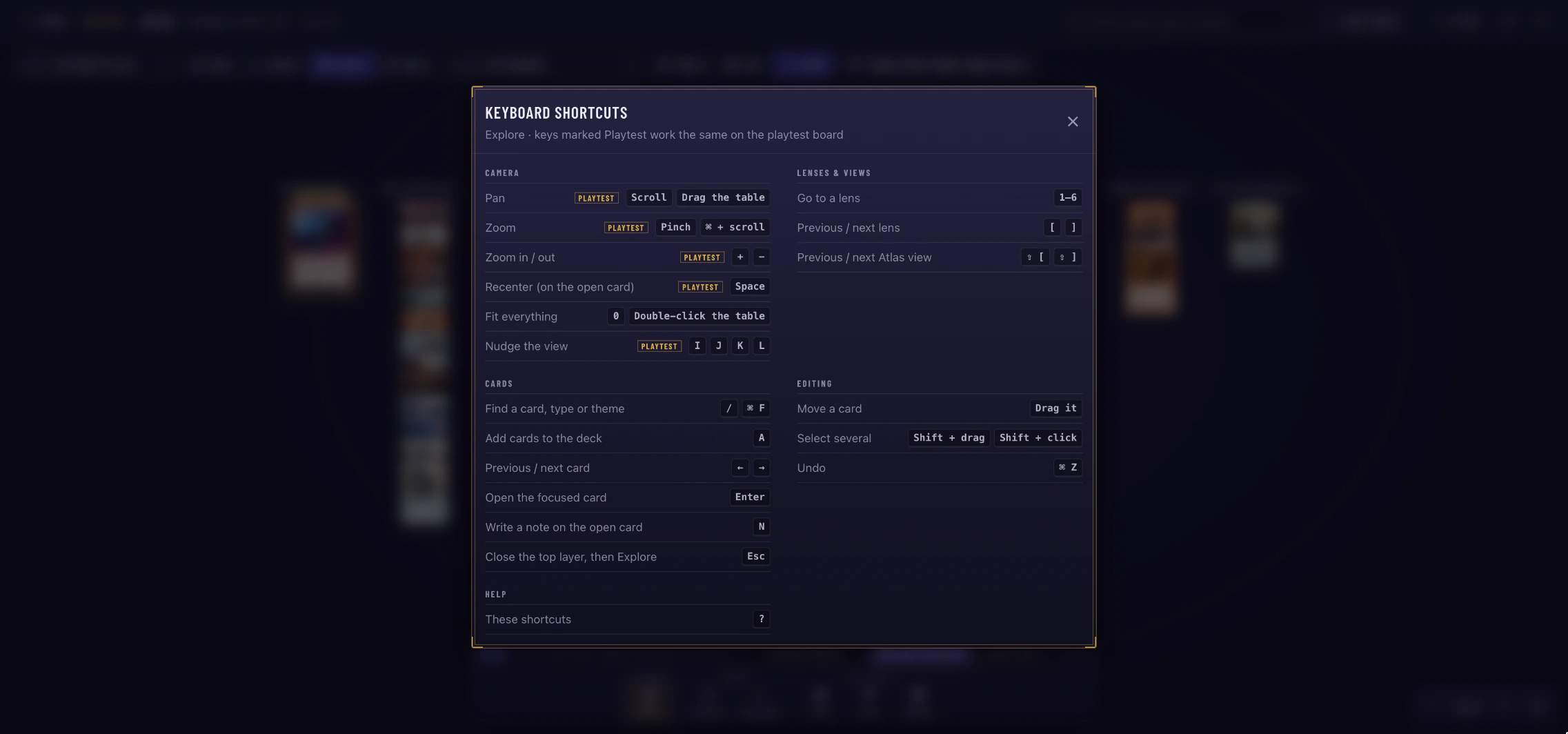
Explore is built to be fast from the keyboard. Press ? at any time to see every shortcut. A few favorites:
- 1–6 jumps to a lens, and [ / ] steps through them.
- Shift + [ / Shift + ] steps through the Atlas views.
- ← / → moves between cards, and Enter opens one.
- 0 fits everything on screen, and Space recenters.
Shortcuts marked Playtest work the same way on the playtest board.
For Primer Writers
Writing a primer? A good tour is now much easier to put together.
Build a Tour
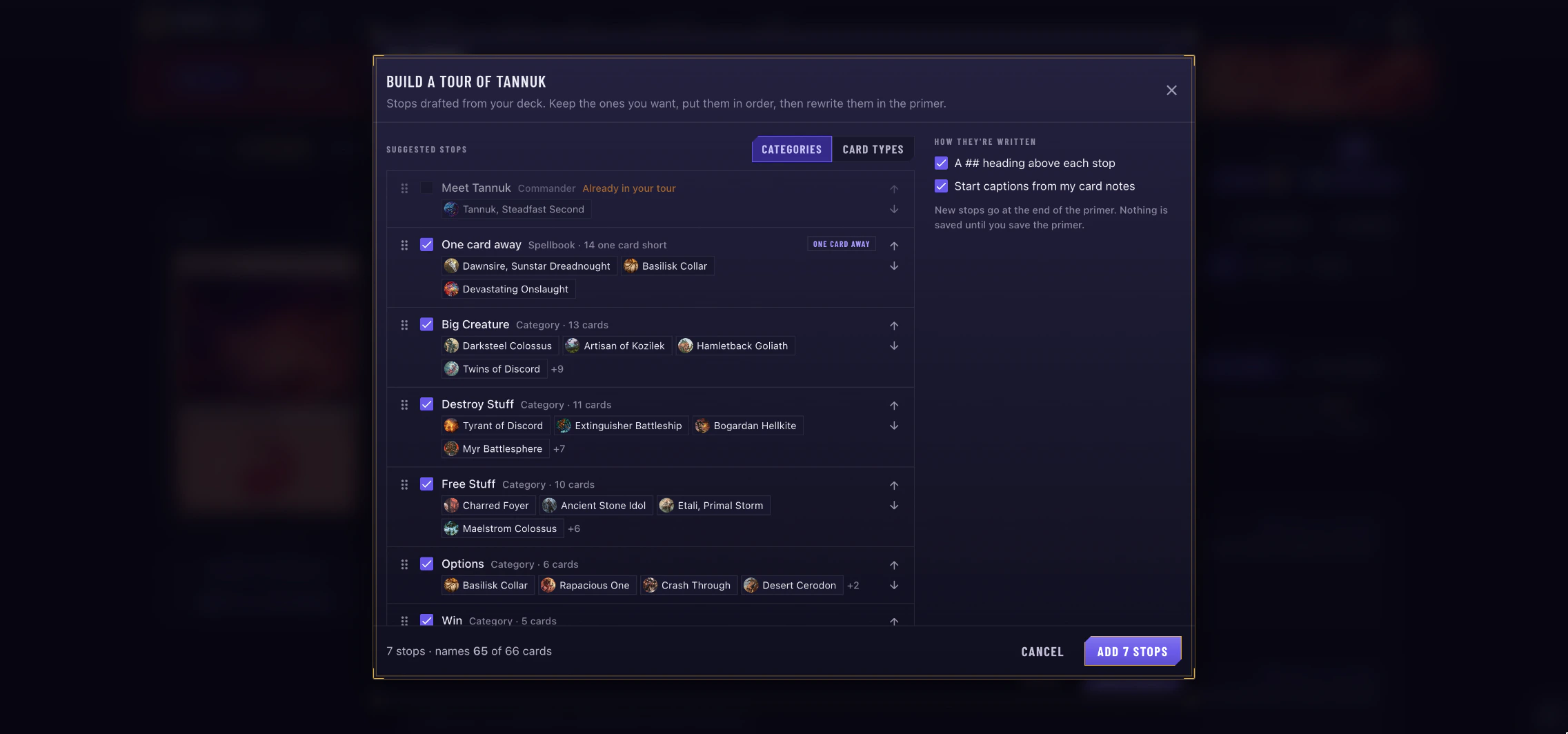
Click Build a tour in the primer editor (or Or start with a tour of the deck on an empty Primer tab). ManyTCG drafts stops for you from the deck: its commander, its combos, its categories and more, each with its cards and a starting sentence from your card notes. Keep the ones you want, put them in order, and they're written into your primer, ready to rewrite in your own words.
The Tour Pane
The primer editor now has a Tour pane that shows the tour your text makes, live. It shows how much of the deck the tour covers, flags anything worth fixing (like a card that isn't in the deck or a stop with no caption), lets you drag stops into order, and suggests cards for sections that don't name any yet.
To add a stop by hand, type /stop (or click Stop from cards) and pick its cards by category.
More Helpers
Type / in the primer for a set of new helpers that start from your deck: a combo filled in from Commander Spellbook, a mulligan guide, a matchups table, card choices, budget swaps, and more. Or click Templates to start a whole primer whose sections fill in from the deck.
Go Explore
That's Explore. Open any deck, click Explore, and see it in a whole new way. Try a few Views on your own decks. You might be surprised by what turns up.
Have feedback or ideas for new views? We'd love to hear them on Discord.
Happy brewing.
The ManyTCG Team