

Welcome to The Forge 🔨
Your ideas just became playable.
With Crafted Cards you can design fully custom cards right inside ManyTCG, then use them in your decks and your playtests. Prototype a wild combo, design the commander you wish existed, or just have fun with it. Crafting puts the whole card in your hands.
You can save up to 10 cards for free, and Patreon members can craft 100 or more. Crafted cards always carry a CC mark, so they're easy to spot in the deck builder and at the playtest table.
Before You Start: The Ground Rules
Crafted cards are a sandbox, so a few limits apply (subject to change):
- They aren't legal in any format. Decks that contain them show a notice saying so.
- They stay with their maker. Copying someone else's deck doesn't copy their crafted cards.
- They can't be drafted. Crafted cards in a cube list are skipped when you draft that cube.
- Deck search hides them by default. To find decks that use crafted cards, tick Include crafted cards in the deck search filters.
Getting Started ✨
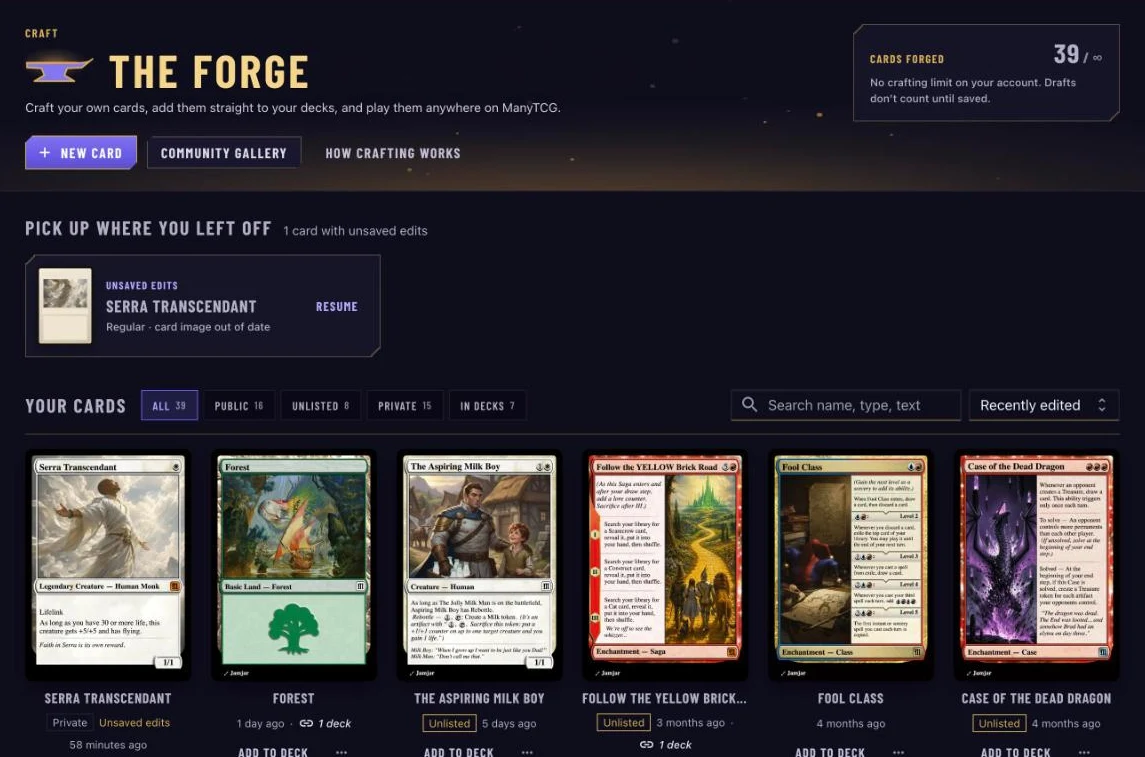
Click Craft in the site header to open The Forge. You can also reach it from the Crafted Cards gallery.
The Forge is your workshop:
- Cards forged shows how many of your crafting slots you've used. Drafts don't count until you save them.
- Pick up where you left off holds cards you've started but haven't saved, ready to Resume (or Discard).
- Your cards lists everything you've made, with filters (Public, Unlisted, Private, In decks), search and sorting.
Click New card to begin.
Pick a Layout
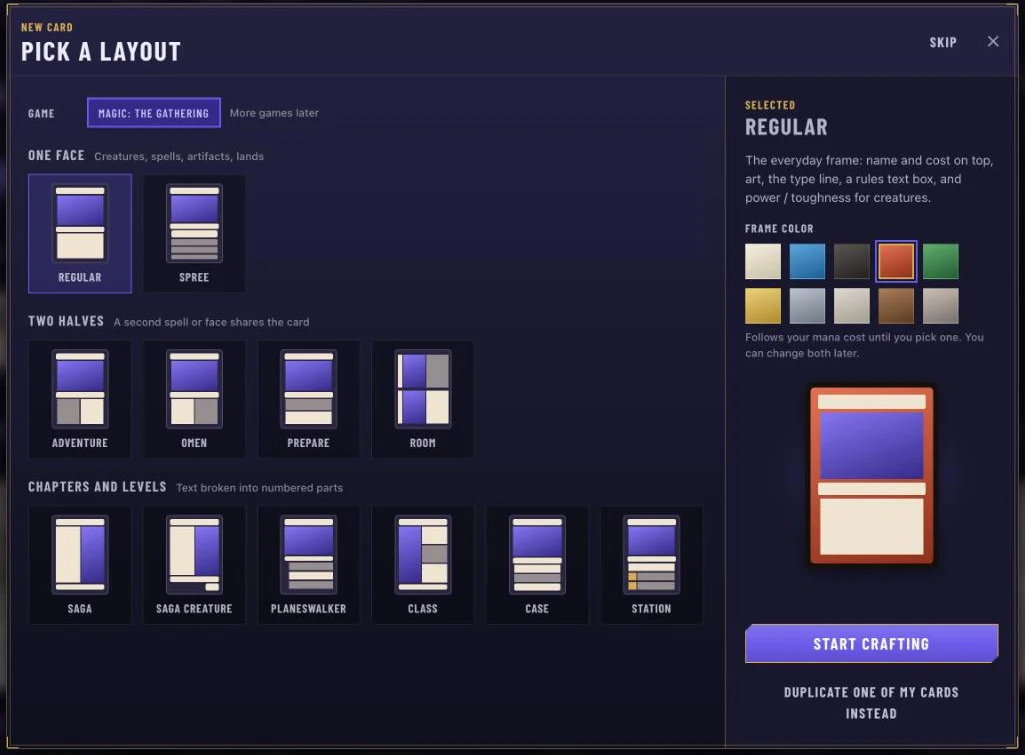
First, choose the shape of your card:
- One face: Regular and Spree
- Two halves: Adventure, Omen, Prepare and Room
- Chapters and levels: Saga, Saga Creature, Planeswalker, Class, Case and Station
Pick a Frame color too (or let it follow your mana cost), then click Start crafting. In a hurry? Skip starts a regular card. You can also duplicate one of your cards and remix it.
The Editor 🛠️
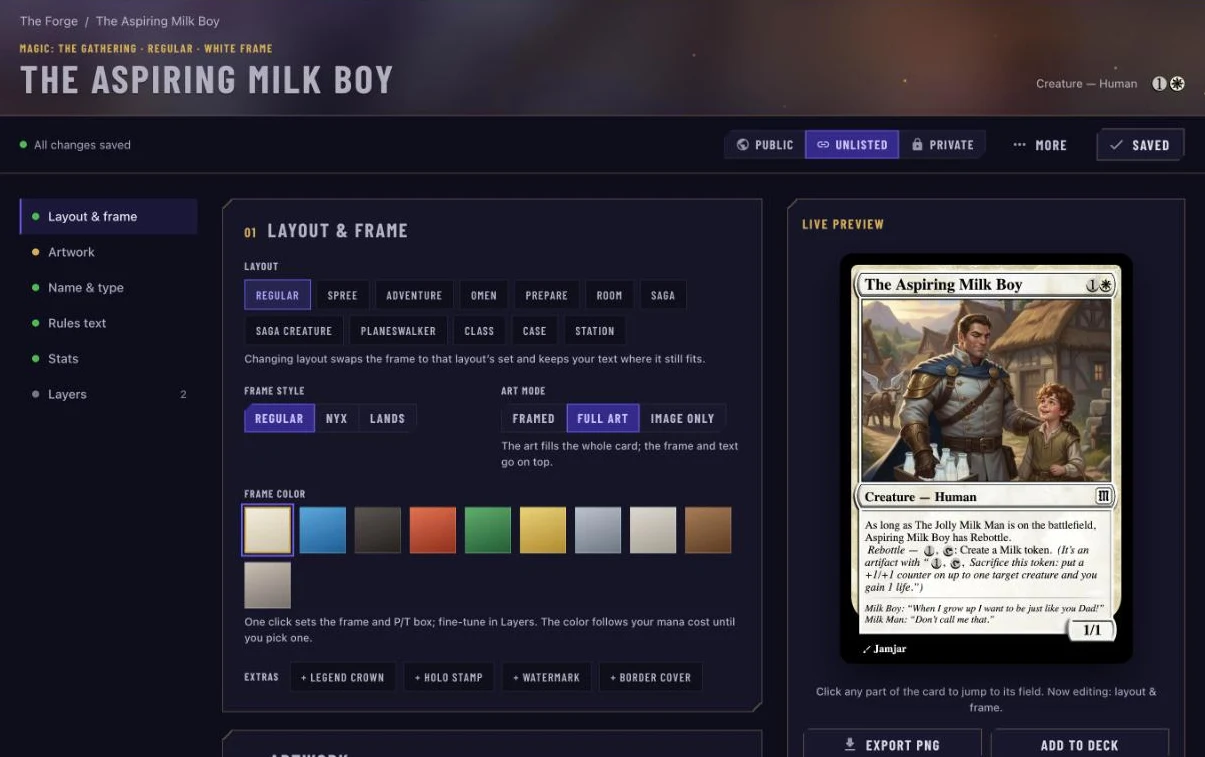
The editor puts your card's fields on one side and a Live preview on the other. The rail on the left jumps between sections: Layout & frame, Artwork, Name & type, Rules text, Stats and Layers.
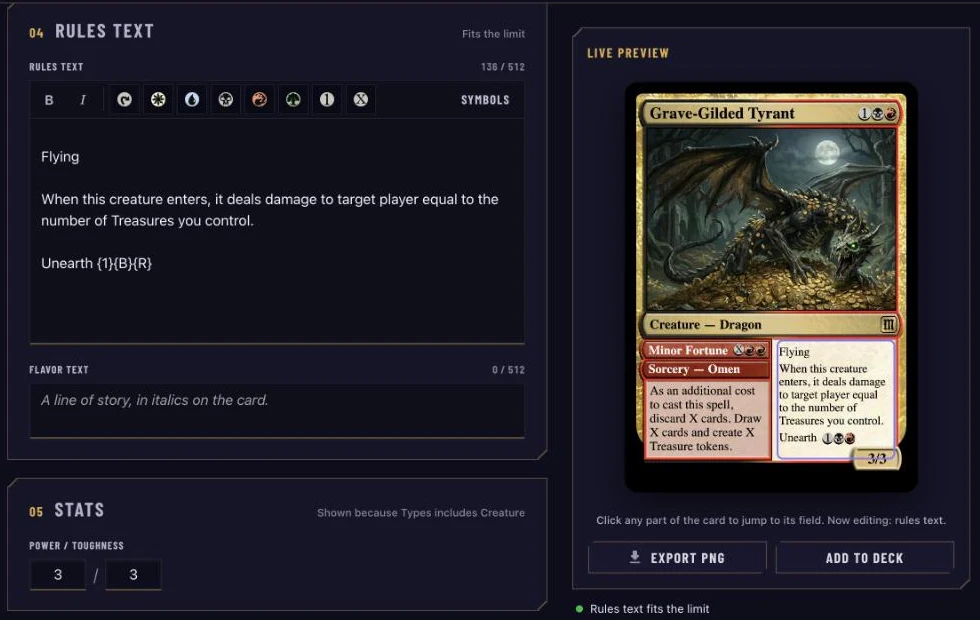
The preview is clickable, too. Click any part of the card (the name, the art, the text box) to jump straight to its field.
🎨 Layout & Frame
Change the layout any time, pick a Frame style (Regular, Nyx, Snow and more, depending on the layout) and an Art mode: Framed, Full art or Image only.
Add Extras such as a Legend crown, Holo stamp or Watermark. Frames are built for you from your choices. If you want to go deeper, the Layers section (marked Advanced) lets you add, mask and stack individual frame pieces to make something completely custom.
🖼️ Artwork
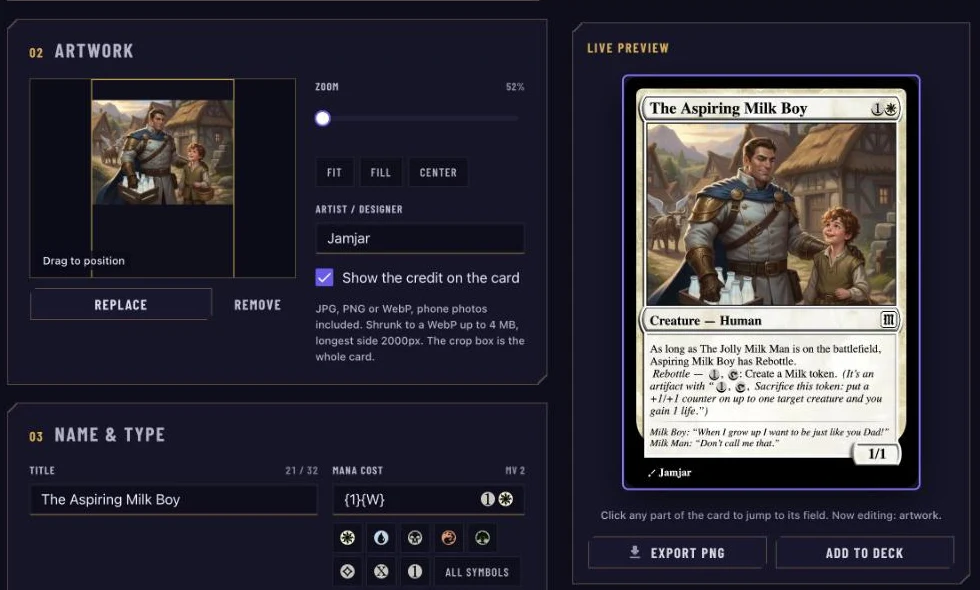
Drop your art onto the art box, click to choose a file, or just paste it. Then frame it the way you want:
- Drag the image to position it (pinch to zoom on a phone).
- Use the Zoom slider, or snap it with Fit, Fill or Center.
- Add an Artist / designer credit and choose whether to show the credit on the card.
✍️ Name, Type and Rules Text
Fill in the Title, Mana cost, Supertype, Types, Subtype and Rarity. Then write your Rules text and Flavor text.
Mana symbols go in braces, like {2}{G}. Click Symbols to see every symbol the card can draw, and use Bold and Italic from the toolbar. A counter tells you when your text fits the limit. Sagas, planeswalkers and other sectioned layouts get their own chapter and ability fields.
Creatures get Power / Toughness under Stats, and planeswalkers get Starting loyalty.
💾 Autosave and Save Card
You don't need to worry about losing work. Your card autosaves as a draft a few seconds after each change. Drafts are private and don't use up a crafting slot.
When you're happy, click Save card. This renders the final card image and publishes it with the visibility you chose:
- Public: on your profile and in the community gallery
- Unlisted: only people with the link can see it
- Private: just you
A short Before saving checklist flags anything that needs attention first, such as a missing name or rarity, or art that doesn't cover the art box.
Add It to a Deck 🧩
Once saved, a crafted card works just like any other card. There are two ways to add one to a deck.
From the Card
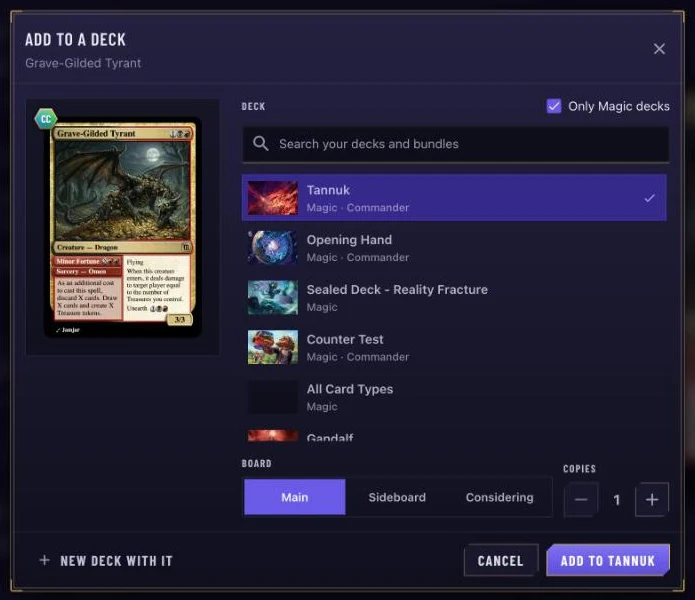
In The Forge, click Add to deck on a card tile (or use More → Add to existing deck or bundle in the editor). Pick a deck, choose Main, Sideboard or Considering, set the number of copies, and you're done. Or click New deck with it to build a fresh deck around your creation.
From the Deck Builder
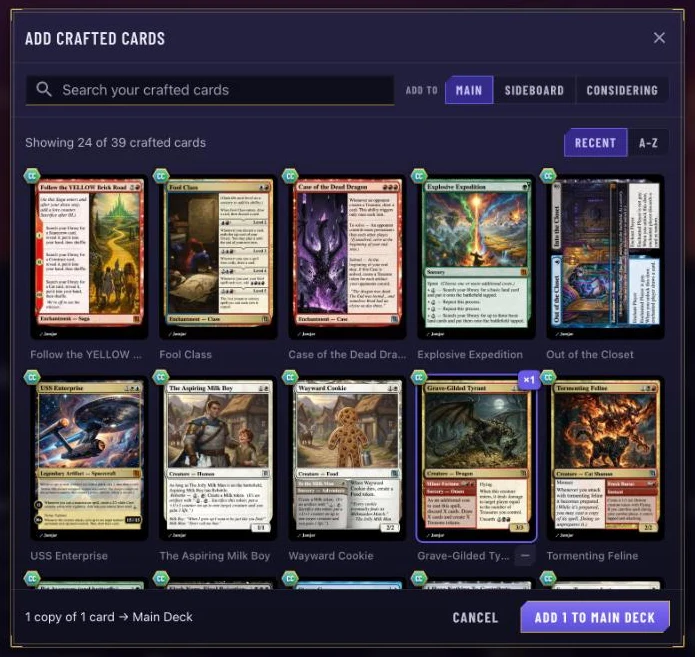
On a deck page, click the Crafted cards button in the toolbar. Search your cards, choose a board, click the cards you want (click again for more copies), then Add them.
Crafted Cards Follow the Rules 📜
Crafted cards follow the rules of their game. Make your creature a Legendary Creature, for example, and you can Set As Commander from its menu on the deck page.
Playtest Your Creation 🎮
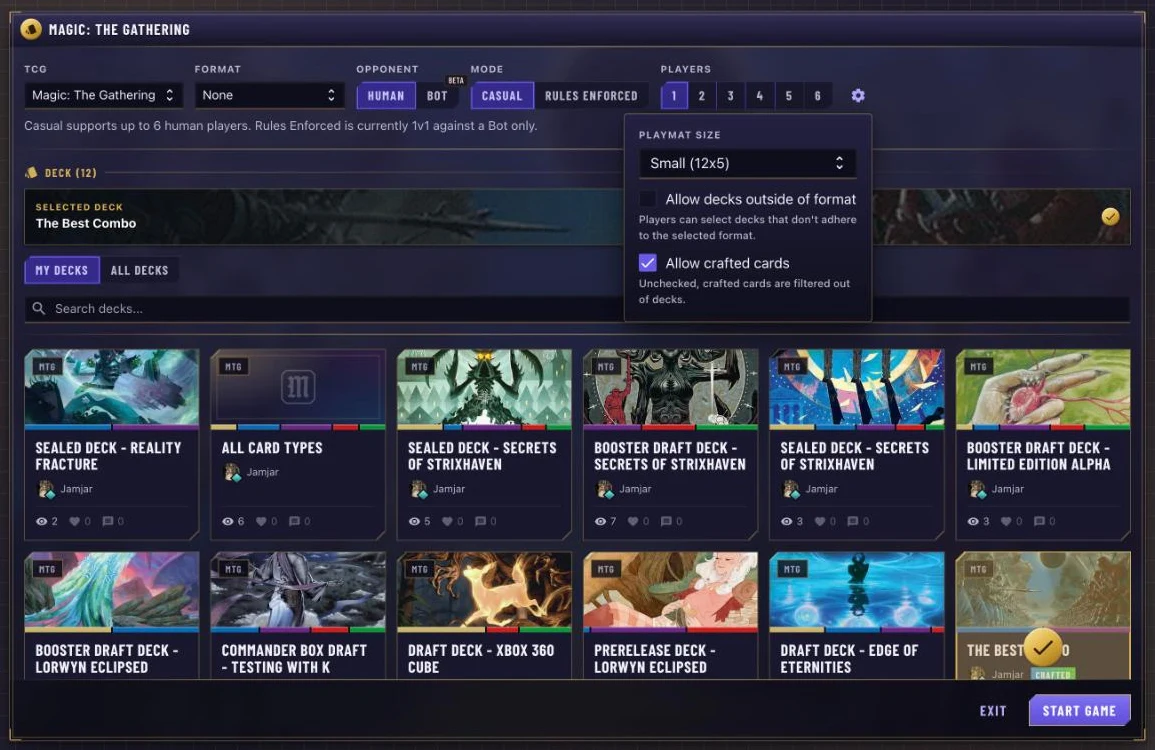
This is where it gets really fun. Click Playtest on your deck. In setup, open More settings and make sure Allow crafted cards is checked. Uncheck it and crafted cards are filtered out of the deck. (Crafted cards aren't available in Rules Enforced games or against the AI.)
And just like that, you're playing with a card you designed.
Share It With the Community 🌍
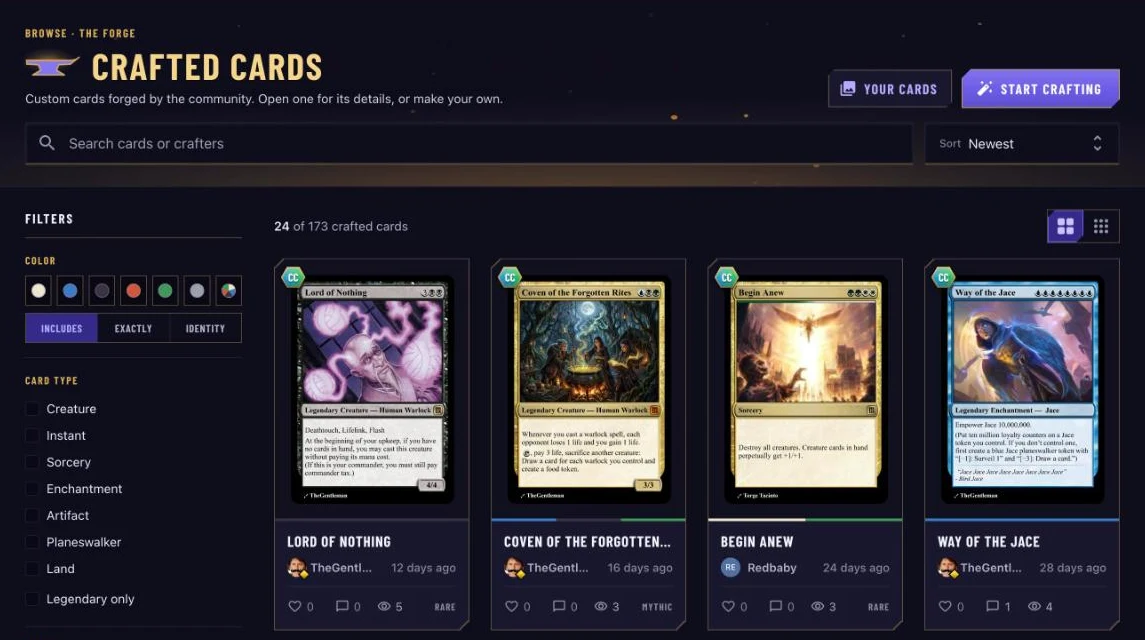
Public cards appear in the Crafted Cards gallery, where you can browse everyone's creations. Search by name or crafter, filter by color, type, rarity and mana value, and sort by Newest, Most liked, Most viewed or Most discussed. Like your favorites, leave comments on a card's page, and follow crafters whose work you love.
Keep an eye out for crafted card contests, too. Enter your best design, and winners earn a trophy for their profile.
Go Craft Something Awesome 🚀
That's it! Your ideas aren't stuck in your head anymore. They're playable, testable, and ready to shake things up.
Have fun, experiment wildly, and happy crafting. If you have any feedback or suggestions, we'd love to hear them!
The ManyTCG Team ❤️